


A Comprehensive Guide to Running AI on a Personal System: Benefits and Methods of Using Offline AI
Running artificial intelligence on a personal system is no longer just a specialized idea for programmers and researchers. Today, many users can run language models, image generation tools, and smart assistants directly on their computers. This method does not depend on a constant internet connection and allows for data processing in a more private environment. Offline AI, with the right choice of model and hardware, can be a practical and reliable option for text generation, summarization, translation, file analysis, and performing some daily tasks.
To start, the system’s processing power, amount of RAM, storage space, and the presence of a suitable graphics card should be checked, as running large models requires more resources. Users can use ready-made applications to manage local models or turn to more specialized tools that offer more detailed settings. When running AI on a personal system, choosing a lightweight and optimized model is very important, as such models usually have higher speed, lower resource consumption, and are more suitable for daily use.

Why Should We Consider Running AI on a Personal System?
One of the most important reasons driving users to run AI on their personal systems is privacy and greater control over data. When a model is run locally, files, texts, and sensitive information are not necessarily sent to external servers, which is very important for businesses, content creators, and even regular users. Additionally, offline AI can continue to operate without interruption in situations where the internet is weak, unstable, or limited, providing a more stable experience.
Another important reason is the reduced dependency on subscription services and increased flexibility in use. Many online AI tools have request limits, monthly fees, or changing policies, but when the model runs on a personal computer, the user has more freedom for experimentation, customization, and continuous use. Running AI on a personal system also helps users adjust the response speed, model type, and processing method to their needs, creating a more dedicated environment for professional tasks.
What is the Difference Between Cloud AI and Offline AI?
Cloud AI depends on service provider servers to process requests; data is first sent via the internet, and the result is returned after processing. In contrast, offline AI runs on a personal computer or server and does not require a constant internet connection to respond. The difference between these two methods lies in the processing location, degree of control over data, cost, speed, model power, and network dependency, with the final choice depending on the user’s needs.
Comparison of Cloud AI and Offline AI:
| Criterion | Cloud AI | Offline AI |
| Processing Location | Service Provider’s Servers | Personal Computer or Server |
| Internet Requirement | Usually necessary | Not necessary for running the model |
| Privacy | Data may be sent | Data mostly remains local |
| Cost | Subscription or pay-per-use | Initial hardware and maintenance cost |
| Model Power | Usually larger models | Dependent on system power |
| Updates | Often automatic | Usually by the user |
Cloud AI is suitable for users who need large models, advanced capabilities, and regular updates without purchasing powerful hardware. Offline AI is a better option for confidential information, environments without internet, and continuous use; however, its performance depends on the processor, RAM, graphics card, and chosen model. Cloud services usually have a subscription or usage fee, whereas running AI on a personal system requires more of an initial investment and hardware maintenance. Combining both methods can also sometimes be a balanced and practical choice.
Key Advantages of Using Local Language Models (Local LLMs)
Local Language Models, or Local LLMs, are tools that run directly on a personal computer or internal server and do not require the constant sending of data to cloud services for processing requests. They can be used for content creation, summarization, translation, answering questions, and analyzing information. Using them is suitable for users who, in addition to benefiting from AI capabilities, value privacy, data control, stable access, and the ability to customize the processing environment.
The most important advantages of local language models:
- Privacy Preservation: Information is processed on the personal system, reducing the need to send it to external servers.
- Offline Usage: The model can be run in environments without an internet connection or with an unstable one.
- Reduced Subscription Costs: The user is not dependent on monthly payments or the common limitations of cloud services.
- Greater Control: There is the ability to choose the model, execution settings, software version, and data management method.
- Better Customization: The model can be connected to the specific files, tools, and needs of the user or organization.
- Flexibility in Development: Programmers can test different models and use them in internal projects.
- Local Responsiveness: With appropriate hardware, direct communication with the model can eliminate network latency.
Running AI on a personal system allows users to create an environment tailored to their needs and be less dependent on the policies or changes of online services. However, the performance quality of local models depends on factors such as the amount of RAM, processor power, graphics card, model size, and optimization method. Therefore, before installation, a model compatible with the hardware should be chosen. Offline AI is suitable for confidential data and continuous work, but its maintenance and updates are the user’s responsibility.

Hardware Prerequisites for Running AI on a Personal System
To run AI on a personal system, you must first compare the computer’s hardware capabilities with the requirements of the chosen model. A suitable multi-core processor, at least 16 GB of RAM, and fast storage like an SSD are an acceptable starting point for light to medium models. However, larger models require more memory, and having a dedicated graphics card can significantly increase processing speed. The amount of video memory, or VRAM, is particularly important when running local models.
A powerful graphics card is useful for parallel processing of language and image generation models, but not all users necessarily need professional hardware. Lightweight and compressed models can also be run with a suitable processor and RAM, although the response speed may be slower. Sufficient space for installing models, a proper cooling system, and a stable power supply should not be overlooked. Before installing offline AI, it is best to check the model’s specifications, file size, and the required amount of RAM or VRAM.
Introducing the Best Software and Platforms for Running Offline AI
For running Offline AI, various tools exist, each designed for a specific group of users. Some software has a simple graphical interface and is suitable for regular users, while others, like development environments and local services, give programmers more control. The choice of the right tool depends on factors such as the model type, operating system, hardware capabilities, need for a user interface, API usage, and the expected level of customization.
Recommended software and platforms for running local models:
- Ollama: A simple environment for running local language models via command line and API; suitable for developers and building applications based on local models.
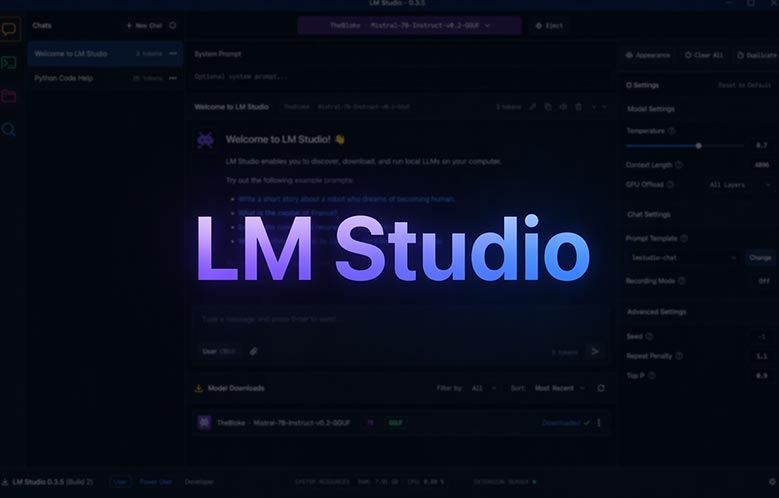
- LM Studio: A graphical software for downloading, managing, and running models with the ability to set up a local server and use an OpenAI-compatible API.
- GPT4All: A private desktop chatbot for running language models on Windows, Mac, and Linux, with the ability to chat with local documents.
- Jan: An open-source platform with a ChatGPT-like appearance that allows running local models and connecting to some online providers.
- llama.cpp: A lightweight, low-dependency engine for running models with more technical control, supporting CPU and GPU, and using GGUF models.
- LocalAI: A local serving engine with an OpenAI-compatible API that supports text, image, and audio models on CPU or GPU.
- Open WebUI: A self-hosted web interface for working with local or cloud models that can connect to tools like Ollama and LocalAI.
For novice users, LM Studio and GPT4All usually offer a simpler start, as model installation and conversation are done through a graphical interface. Developers can use Ollama or llama.cpp to build applications, use APIs, and manage resources more precisely. In projects that require a multi-user web environment, connecting Open WebUI to Ollama or LocalAI is a more practical option. When running AI on a personal system, it is best to check the model’s compatibility with RAM, processor, and graphics card before installation.
Step-by-Step: How to Install AI Models on Your Computer?
First, you must define your goal, as the right model for text conversation, image generation, programming, or document analysis is not the same. Then, check your system specifications, including processor type, amount of RAM, free SSD space, and graphics card memory. To begin, lightweight and compressed models are a better choice because they consume fewer resources. You also need to consider the operating system and computer architecture to ensure the model execution software is compatible with your device and the installation process proceeds without errors.
In the next step, download and install one of the local model execution tools like Ollama, LM Studio, or GPT4All from its official website. After running the program, review the list of compatible models and choose one that matches your system’s hardware capabilities. Read the model’s file size and the required RAM or VRAM before downloading. Some models are offered in formats like GGUF, which are well-optimized for running AI on a personal system and occupy less space.
After downloading the model, load it in the software environment and run a test conversation. Check the response speed, memory consumption, hardware temperature, and output quality, as the actual performance may differ from the model’s stated requirements. If the response is slow, choose a smaller model or reduce the number of concurrent processes. At this stage, the offline AI works without sending requests to an external server, but software updates, models, and security settings should still be performed periodically.
Challenges and Limitations of Running AI on Home Hardware
Running AI on a personal system has significant advantages like privacy preservation and reduced internet dependency, but it is not without limitations. Language and image models, especially large versions, require considerable RAM, storage space, and processing power for smooth responses. On many home computers, the lack of a dedicated graphics card or sufficient video memory causes slow response generation. Also, an incorrect model choice can increase resource consumption and affect the user experience.
The most significant challenges of running local models:
- Need for Suitable Hardware: Large models usually require more RAM and VRAM.
- Slower Response Speed: Running a model on a CPU takes longer compared to a powerful graphics card.
- Limitation in Model Selection: Not all advanced models can be run on standard systems.
- Storage Space Consumption: Model files, compressed versions, and auxiliary data can take up a lot of space.
- Heat and Energy Consumption: Long-term processing can increase system temperature and power consumption.
- Need for Technical Configuration: Installing tools, selecting model formats, and troubleshooting can be difficult for beginners.
- Manual Updates: Maintenance of software and models is often the user’s responsibility.
To manage these limitations, it is better for users to start with small, compressed models and, after evaluating performance, move on to larger options. Using an SSD, increasing RAM, and choosing a model compatible with the processor or graphics card has a great impact on the user experience. Offline AI is very useful for daily tasks, analyzing private documents, and testing models, but one should not expect all large cloud models to run with the same speed and quality on every home computer.
Optimizing Offline AI Performance on Weaker Systems
Running offline AI on weaker computers is possible by selecting the right model and correctly configuring the software. Small, compressed models usually require less RAM and processing power and respond faster. Before installation, the model size, number of parameters, and required memory should be checked. Using an SSD, closing extra programs, and updating hardware drivers can also improve loading times and processing speed, putting less strain on the system.
Strategies for increasing the speed of local models:
- Choosing low-volume, low-parameter models appropriate for the system’s power.
- Using quantized versions, such as 4-bit or 8-bit models.
- Reducing input text length and limiting the conversation memory size.
- Closing the browser and unnecessary applications when running the model.
- Using an SSD instead of a regular hard drive to store and load the model.
- Reducing the number of concurrent requests and background processes.
- Enabling hardware acceleration if supported by the software.
- Choosing specialized models for a specific task instead of large general-purpose models.
On weaker systems, model quantization is one of the most effective methods for reducing memory consumption and increasing speed, although excessive reduction in precision might slightly lower the response quality. It is also better to limit the size of the input and output text, as processing long contexts consumes more resources. Running AI on a personal system will be smoother when the model is chosen in harmony with the hardware. If the speed is still low, using a smaller model or combining the processor and graphics card can produce better results.

Practical Applications of Local AI in Various Fields
Local AI can be used in many daily and professional tasks without sending information to external servers. Users can use it for text generation and editing, summarizing articles, translation, extracting information from documents, and answering internal questions. Students and researchers can also review their educational files offline and better organize complex content. This method provides greater control over information for people who work with confidential data.
In work environments, running AI on a personal system or internal server can help automate various processes. Drafting emails, categorizing customer requests, searching organizational documents, generating reports, and analyzing text data are common applications of this technology. Programmers can also leverage local models for code completion, explaining errors, generating test cases, and documenting projects. Performing these tasks in an internal environment reduces dependency on cloud services.
In more specialized fields, offline AI is also used for image processing, speech-to-text conversion, pattern recognition, and sensor data analysis. Stores can check inventory, workshops can analyze equipment status, and educational centers can align their smart tools with local needs. Of course, the quality of the result depends on the model, the data used, and the hardware capabilities. Therefore, before choosing a tool, the goal, the level of information confidentiality, and the system resources must be carefully evaluated.
The Personalized Future: When AI Becomes One with Your System
Personalization once meant simple suggestions like the next movie or a dark theme. Today, the line between “tool” and “environment” is blurring. With your permission, AI is moving beyond a separate app to access your files, calendar, and work habits. This deep integration isn’t about automating everything, but understanding context. It knows if you’re writing or in a meeting, your preferred summary style, and what requires your confirmation. The result is less a “smart chatbot” and more a true companion, anticipating your needs instead of just answering questions.
This integration brings both opportunity and risk. On one hand, it reduces daily friction by drafting responses, creating priority-based reminders, and enabling natural language search. The AI learns from your feedback continuously. On the other hand, as AI integrates deeply, privacy, security, and transparency become critical. You need control over data flow, how the model “forgets,” and where to draw boundaries. The future points to background agents that are stoppable, auditable, and always under your control—a layer that optimizes the system for you, not the average user.
Suggested Reading: Requirements for Gemma 4 AI




Leave a Comment